Wednesday, May 26, 2010
 Image via Wikipedia
 Image by Getty Images via Daylife
Our name came about because we teach the quadratic formula sung to the tune of "Pop Goes the Weasel." The three of us have gotten together over the summer for the last couple of years to work on prep for the upcoming semester. We don't always end up working on the same projects, but being with each other allows us to bounce ideas off one another as they come up. I know that I am a more effective teacher because of the Quadratic Choir. We support each other, help each other with ideas, tell each other when we need to say no to a project thrown our way, and just have fun together.
Over spring break, two of us met for a day and a half and were able to build a set of concept questions to use in our Prealgebra classes. It is so much more productive, fun, easy to work with someone else on projects like this. We created the list with a Google Document so that we could both be working on the document at the same time, which helped to streamline the typing. We use Microsoft OneNote 2007 on a Tablet PC to teach our classes, and the 2007 version does not support mathematical expressions (unless they are images). Because of this we did not use an equation editor to write our questions, instead we just used old school equation making with text alone. It worked out reasonably well and now I can just cut and paste the questions I want into my OneNote notebook to use in the classroom.
This summer we plan on writing more clicker questions for Elementary and Intermediate Algebra, bringing in the third member of the Choir. Using Google Docs should be even more useful with the new feature allowing real time co-editing of documents!
Would you like to see our Prealgebra questions or even add to the list? We would love that! The questions are matched up to the sections in Elayn Martin-Gay's Prealgebra 5th and 6th editions and many of the questions came from or were inspired by the text's Concept Questions.
![Reblog this post [with Zemanta]](http://img.zemanta.com/reblog_b.png?x-id=159296f8-8c9c-40af-928f-2efa013fe7f2)
Sunday, March 14, 2010
GALE: The Guild for Active Learning and Engagement in Science, Tecnology, Engineering, and Mathematics
0 comments at 7:02 PM If you want to see a change in the way we teach STEM courses, follow the link and pledge your support for GALE, The Guild for Active Learning and Engagement in STEM. http://bit.ly/GALESTEM
We are STEM education professionals who want to learn about and promote active learning and engagement in science, technology, engineering, and math education. We think that each discipline in STEM can share what we learn with each other, and that we should do more of this.The graph below should track changes to the number of Facebook fans as I check in with the group on a day-by-day basis. Check back to watch us grow!
If GALE reaches 1000 Facebook fans, we will organize as a nonprofit, build a website and social media presence, and elect an advisory board.
Saturday, March 6, 2010
Here goes. Today I give my first presentation at a math conference, CMC3-South. I'm excited and a little nervous, but the run-through I did last night seemed to go well. Here are the slides I will be using.
Friday, September 11, 2009
For the first time in a long, long while, I have a group of students in an Elementary Algebra course that are really doing well. Our department changed the cut scores on our assessment test starting this semester, and students seem to be getting placed a little bit more accurately.
Two things made this something to notice. On the first exam, over 25% of the class earned an A! This just never happens, even though the material on the first exam is supposed to be review. Then in class yesterday, we were on one of those class days that historically is really a time crunch. The warmup is one that students tend to struggle over (word problems) and then the topics are not difficult, but jam-packed with ideas. For the first time ever, students finished the warmup within the 20 minutes I was hoping for, I was able to give a break, and we finished 5 minutes early. What the heck?!?!?
I'm hoping that this is truly a sign that I have a group of students who are actually prepared. Hopefully it is not just that I had them so lost that they just didn't say anything in class.
I really am optimistic that things are going well in this class this semester...
Tuesday, September 1, 2009
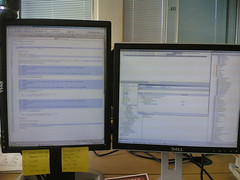 Image by OwenBlacker via Flickr
Today, I bought myself an external monitor to attach to my laptop when working at my desk at home. I am in LOVE! I have so much more space to keep track of the things I am working on. If only I'd waited to grade some of the assignments for my hybrid class till now, except that would mean I would have to grade now. Well, it would have made the grading go so much quicker and easier. Instead of switching back and forth from one window to another, I could just look to the side at my new monitor and then back to the laptop screen. This is gonna be cool!

I am also looking into a small USB touchscreen monitor to use in the classroom. My plan is to mirror what I see on the laptop screen to the projector, but extend the desktop to the small screen. There have been quite a few times just over the last two weeks that I wished I had another computer right at my fingertips to allow me to do something that the students couldn't see on the screen. I'm hoping that this setup would allow me to do just that, and not have to change what the students are seeing on the screen. I think I want the touchscreen model so I would not have to have a mouse to navigate on the other screen, but I'm still debating with that idea in my head.
Stay tuned for an update on whether or not that works the way I am hoping.
![Reblog this post [with Zemanta]](http://img.zemanta.com/reblog_b.png?x-id=f978fb58-63bc-4ed7-8d4a-0392e352f8e5)
Monday, August 31, 2009
Whenever I work on a new computer, there are a few things I like to customize in the OneNote Toolbars to make it easier to work in the program. Check out the video to see what customizations I like to make.
If you are viewing this in an RSS reader, you may need to click through to view the videos.
I like to change the 4 thin pens at the top of My Pens Toolbar to be 4 more thick pens in different colors, and I like to change the color of some of the highlighter pens. Watch the next video to see how.
Are there any other things you like to add to or customize on the toolbars? Share in the comments.
![Reblog this post [with Zemanta]](http://img.zemanta.com/reblog_b.png?x-id=9370df11-01fb-4bdd-91df-f52553a5f651)
Saturday, August 22, 2009
I also love that I can copy information from anywhere and store it in OneNote. When you copy and paste into OneNote, you will also get a link showing where that information was copied from. This is great if you are researching and collecting ideas from the web, but forgot where you found that awesome thought in your surfing. I like to be able to go back to a website and see if they have any other ideas I might like. It can also be great when you need to cite your references. The paste function puts it right there with the stuff you copied.

You also have an option to print documents to OneNote. This is how I get my "handouts" into OneNote before presenting a lesson in class. I then write all over that document in OneNote just like my students are writing on their copies.
OneNote functions like a 3-ring-binder, but you don't have to have paper or worry about hole punching. This image shows the logic in how OneNote is setup:

I store EVERYTHING in OneNote. Okay, maybe I'm exaggerating, but I do have loads of information in my OneNote notebooks.
- For school, I have a separate notebook for each class section.
- I transfer past semesters from their notebook into my Past Semesters notebook, so I can always look back a what was done in class.
- I put receipts in another notebook. Remember, you can print to OneNote? Anytime I make an online purchase, I print the receipt to this notebook. I have a copy that can be printed out on paper if needed, and if not I haven't wasted any paper.
- I have another notebook where I take notes in various meeting at school (department, division, committee, etc...)
- There is another notebook for conferences. I take my tablet with me to conferences now and take my notes on the tablet in OneNote.
OneNote notebooks can be shared on multiple computers. The way I use this mostly is that I store my notebooks on a USB flash drive. Once I have opened a notebook from the thumb drive, OneNote creates a backup copy on that computer. Any changes made will be synced back to the original the next time I plug in my USB flash drive. I make sure to do this after I leave school and then when I want to work on my personal Tablet PC, I plug in the USB flash drive. The school changes are then synced to my personal copy at home. Any changes I make here are synced to the drive and back at school once I plug it in there. There are ways to do this online as well, though I haven't tried them out yet.
There is a built in screen-clipping function that comes with OneNote. Just press the Windows key and S and it activates it. Clip what you want and use it, not only in OneNote, but anywhere you can paste an image. I've made some nice training materials using this feature as well as used it to answer student questions. Anything you can view on the computer screen can be clipped and pasted to use elsewhere.
Do you have any other favorite OneNote wonders? Share them in the commments, please!
![Reblog this post [with Zemanta]](http://img.zemanta.com/reblog_b.png?x-id=e0230ffa-8783-8aff-baa6-76257e69d7bc)